
How to set YouTube screen time for kids
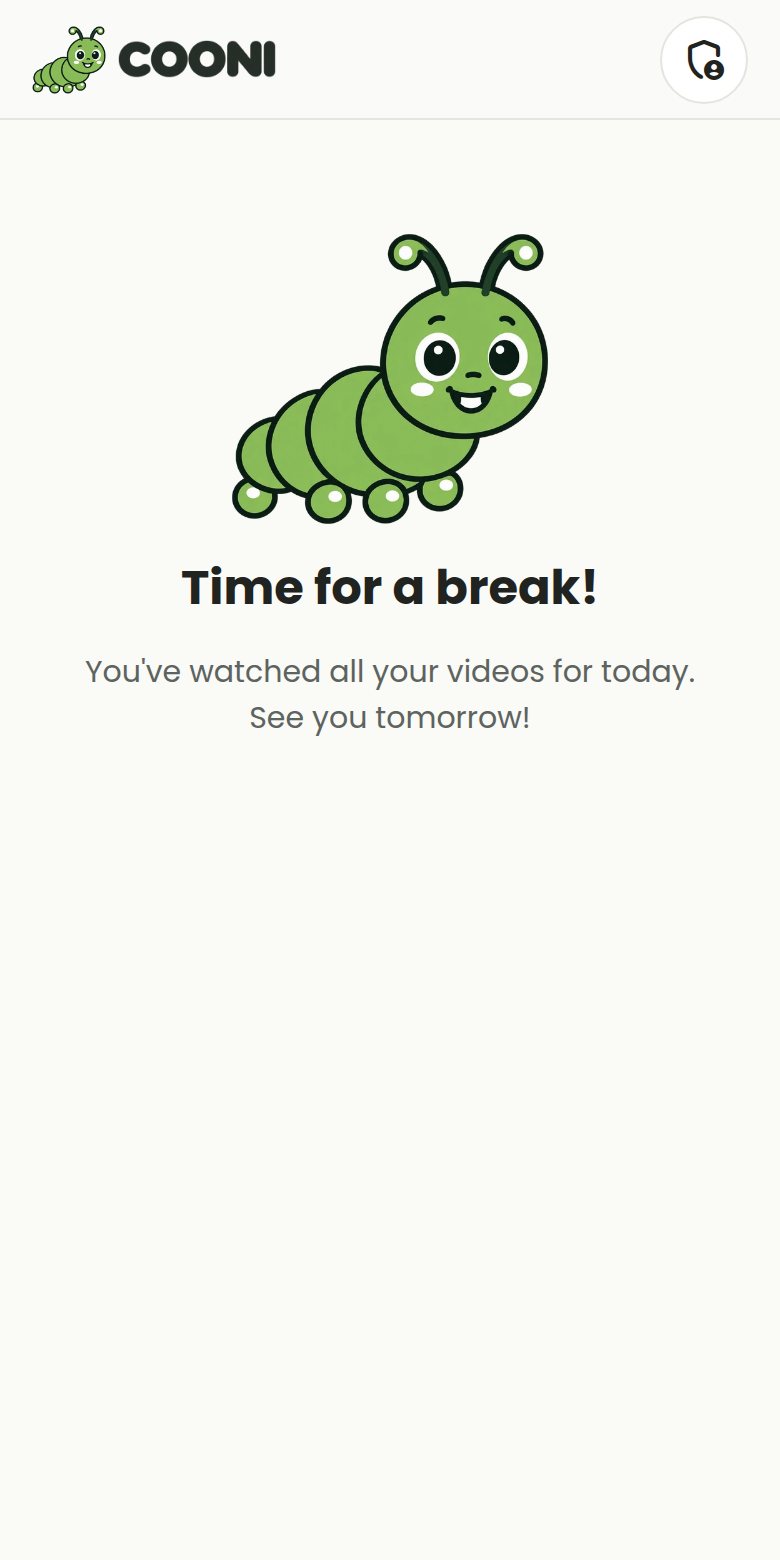
"Just one more video" is the hardest part of screen time. COONI counts your child’s viewing and stops at the limit you choose, with a calm "Time for a break!" screen instead of an argument.
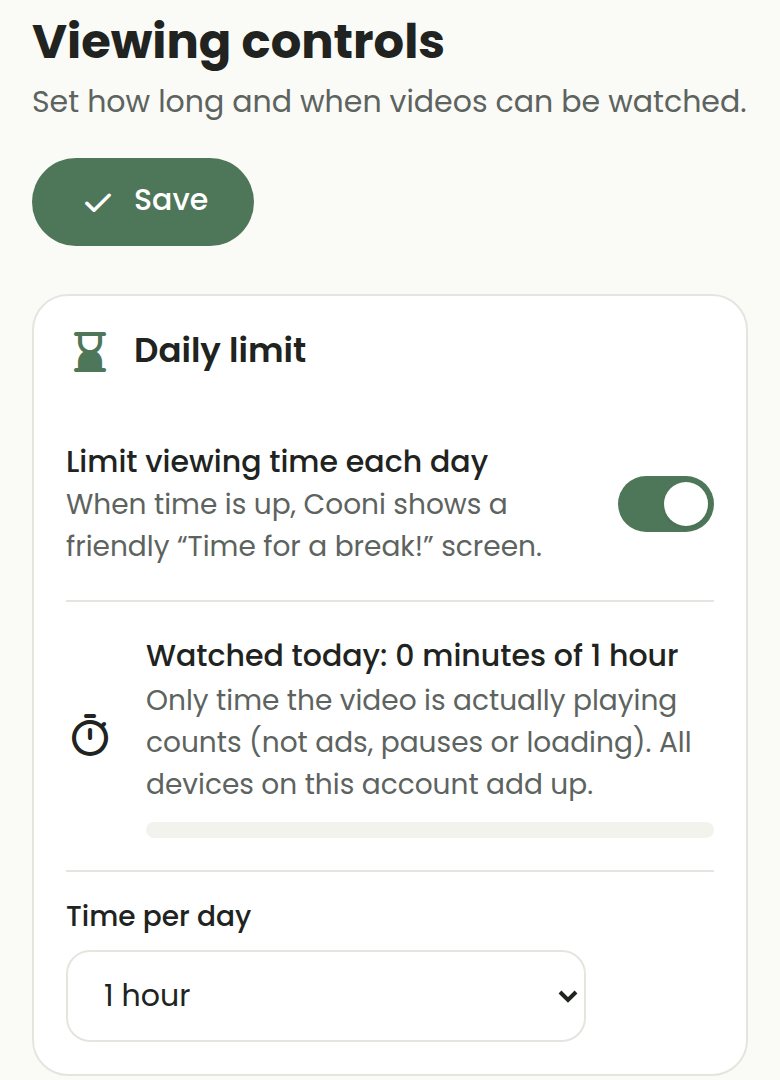
Only time a video is actually playing counts, not ads, pauses or loading, and every device signed in to your account adds up to the same daily total.
Step by step
Open Parent Mode → Viewing
Open COONI, tap Parent, enter your PIN and go to Viewing.
Turn on the daily limit
Switch on "Limit viewing time each day", choose the time per day (for example 30 minutes or 1 hour) and tap Save.
Show the timer
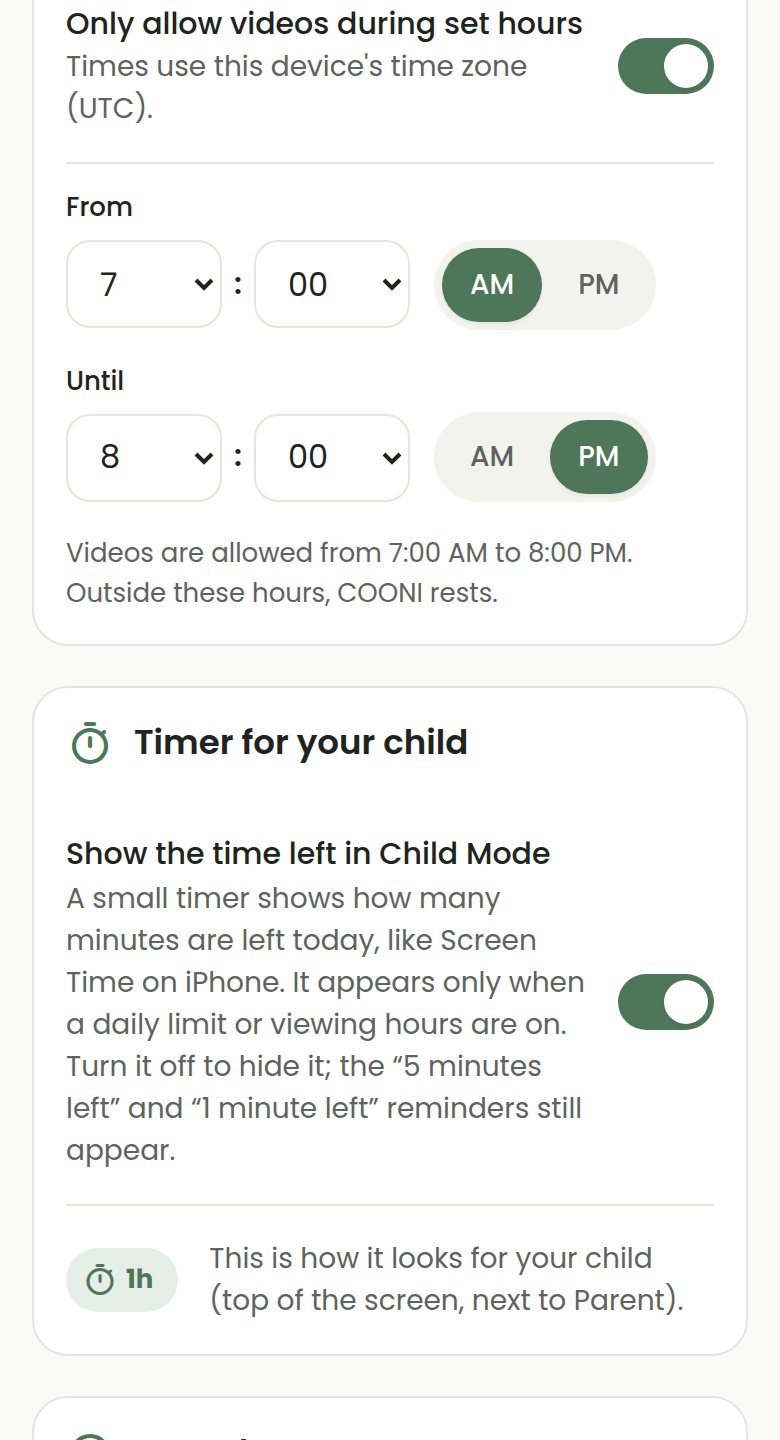
Turn on "Timer for your child" to show the minutes left at the top of the screen. The "5 minutes left" and "1 minute left" reminders appear either way.
Choose allowed hours (COONI Plus)
Pick the hours videos are allowed, for example 7:00 AM to 8:00 PM. Outside those hours COONI shows "Cooni is resting".
Decide on autoplay
Turn off "Play the next approved video automatically" if you want your child to choose each video on purpose.
Questions
Is the time limit free?
Yes. The daily limit, the timer and autoplay are free. Allowed viewing hours and the weekly viewing chart are part of COONI Plus.
Does the limit work across devices?
Yes. All devices signed in to the same COONI account add up to one daily total.
Which time zone is used?
Your own time zone, so the day and the allowed hours follow your local clock.
Try COONI free · How to use COONI
More guides
- How to block a YouTube channel for kids: Block a YouTube channel so your child never sees its videos, or allow only the channels you trust. Step-by-step with COONI, free.
- How to block certain YouTube videos without blocking the channel: A good kids’ channel can still have one video you would rather skip. Hide just that video and keep the rest of the channel. Free with COONI.
- How to block brainrot on YouTube for kids: Hide fast, nonsense "brainrot" meme videos, scary Halloween clips and pranks on YouTube for your child. Step-by-step with COONI.
- How to hide YouTube Shorts for kids: Keep endless YouTube Shorts away from your child. COONI hides short clips by default, keeps Shorts apart and never plays them automatically.
- A YouTube Kids alternative where parents choose the channels: Looking for a safer YouTube Kids alternative? COONI lets parents pick the channels, hide single videos, block brainrot and set screen time. Free.
COONI is not affiliated with or endorsed by YouTube or Google.