
How to block brainrot on YouTube for kids
"Brainrot" is the name people give to fast, loud, nonsense meme videos full of made-up characters and slang. Children can watch them for hours, and they tend to show up right next to good videos.
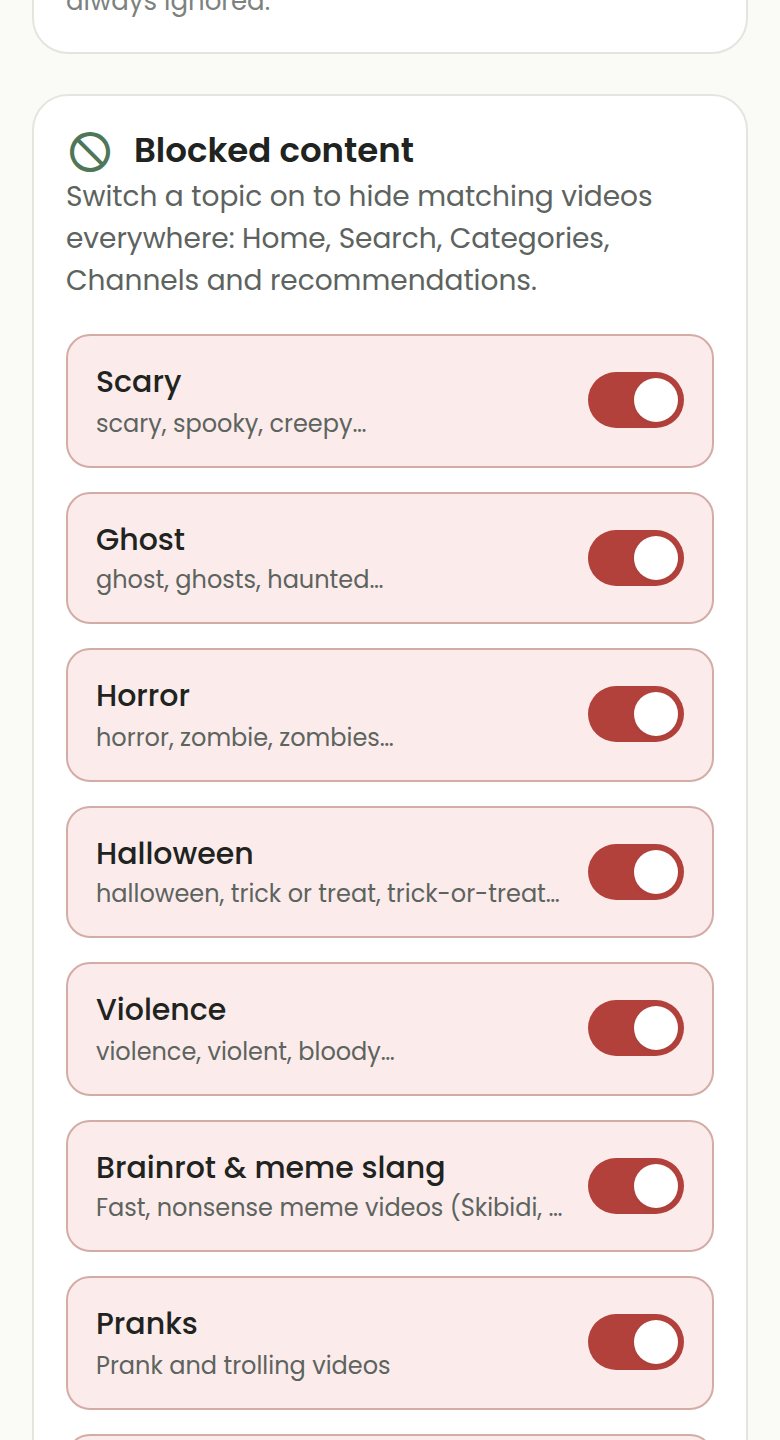
COONI has a built-in "Brainrot & meme slang" topic, switched on for every new account. It hides matching videos everywhere in Child Mode: Home, Search, Categories, Channels and recommendations.
Step by step
Open Parent Mode → Content
Open COONI, tap Parent, enter your PIN and go to Content.
Check "Brainrot & meme slang" is on
Under "Blocked content" the switch should be red (on). While you are there, check the other topics: Scary, Ghost, Horror, Halloween, Pranks, Dangerous challenges, Disturbing kids’ cartoons and more.
Add your own words (COONI Plus)
Seeing a new meme that is not caught yet? Add its name under "Your own words" and any video with that word in its title or tags is hidden.
Keep to channels you trust
The strongest protection is "Only channels I allow" in Parent Mode → Channels. Channels you have never heard of, where a lot of brainrot comes from, never appear unless you allow them.
Questions
Does it catch every brainrot video?
No filter is perfect. COONI reads the title, description, tags, length and YouTube’s Made for Kids label, so it can miss a video or hide a good one. You can block or allow any single video or channel yourself.
Is the brainrot filter free?
Yes. The built-in topics, including Brainrot & meme slang, are free. Your own blocked words, filter sensitivity and the "Recently filtered" review are part of COONI Plus.
Can I see what was filtered?
With COONI Plus, "Recently filtered" in Parent Mode → Content shows what your rules hid and why, and you can allow anything filtered by mistake.
Try COONI free · How to use COONI
More guides
- How to block a YouTube channel for kids: Block a YouTube channel so your child never sees its videos, or allow only the channels you trust. Step-by-step with COONI, free.
- How to block certain YouTube videos without blocking the channel: A good kids’ channel can still have one video you would rather skip. Hide just that video and keep the rest of the channel. Free with COONI.
- How to hide YouTube Shorts for kids: Keep endless YouTube Shorts away from your child. COONI hides short clips by default, keeps Shorts apart and never plays them automatically.
- A YouTube Kids alternative where parents choose the channels: Looking for a safer YouTube Kids alternative? COONI lets parents pick the channels, hide single videos, block brainrot and set screen time. Free.
- How to set YouTube screen time for kids: Set a daily YouTube time limit for your child, show a countdown timer and end with a friendly "Time for a break!" screen. Step-by-step with COONI.
COONI is not affiliated with or endorsed by YouTube or Google.