
How to block a YouTube channel for kids
Some channels look like they are made for children but are full of pranks, shouting, scary thumbnails or fast "brainrot" edits. When you block a channel in COONI, none of its videos appear anywhere your child can look: Home, Search, Categories, Channels or the videos suggested next.
If you would rather start from a clean list, you can switch COONI to "Only channels I allow". Then your child sees only the channels you picked, and any channel you have not allowed stays out without you having to find it first.
Step by step
Open Parent Mode → Channels
Open COONI, tap Parent and enter your 4-digit Parent PIN, then go to Channels.
Choose which channels can appear
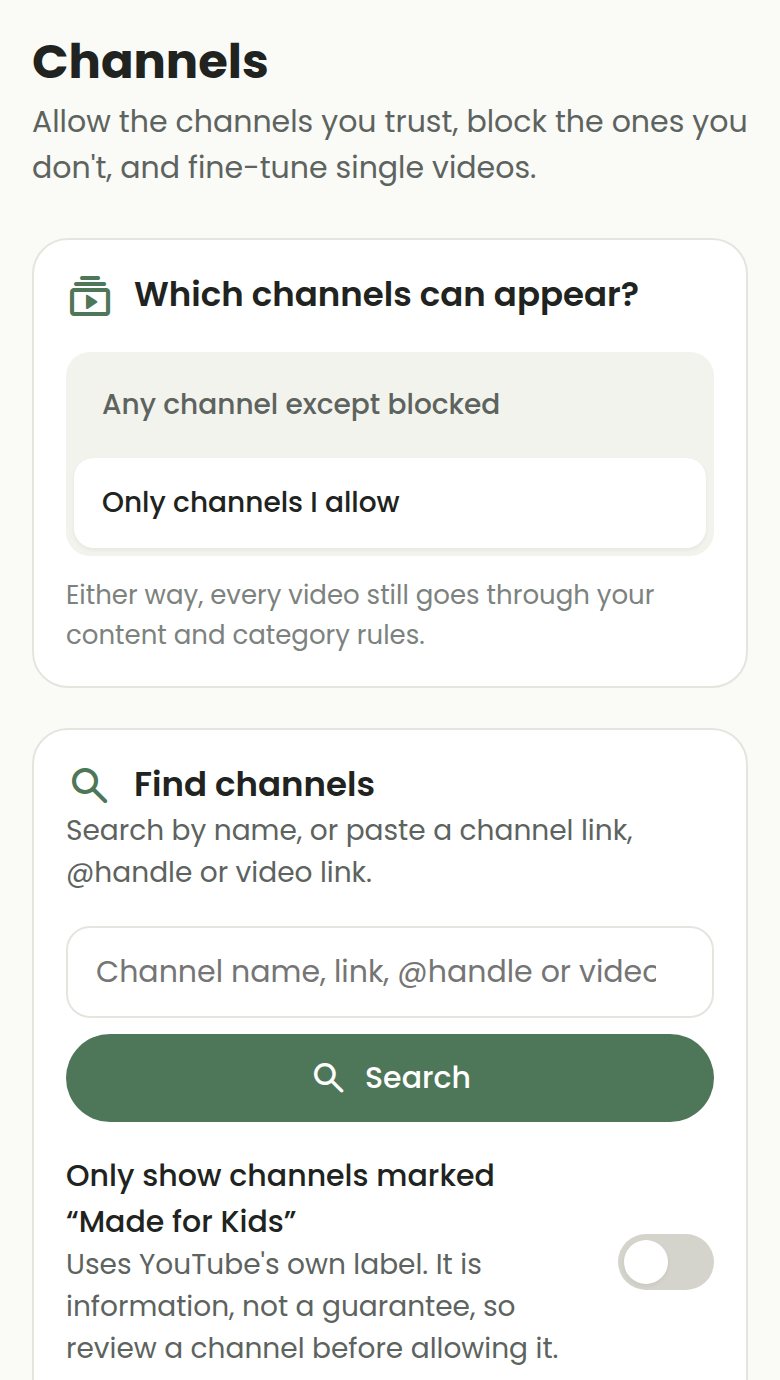
Under "Which channels can appear?", pick "Only channels I allow" for the strictest setting, or "Any channel except blocked" if you only want to keep out a few channels.
Find the channel
Search by the channel name, or paste a channel link, @handle or the link of one of its videos. Check the @handle and subscriber count so you pick the right channel, and tap Preview to look inside first.
Tap Block
The channel moves to "Blocked channels" and its videos disappear from Child Mode straight away. Changed your mind? Tap Unblock in that list at any time.
Questions
Does blocking a channel cost anything?
No. Blocking and allowing channels is part of the free plan, with no limit on how many.
Will my child still find the channel through search?
No. A blocked channel is filtered out of every part of Child Mode, including search results and recommendations.
Can I block a channel but keep some of its videos?
Blocking hides the whole channel. To keep a channel and hide only some of its videos, allow the channel and use "Manage videos" instead.
Try COONI free · How to use COONI
More guides
- How to block certain YouTube videos without blocking the channel: A good kids’ channel can still have one video you would rather skip. Hide just that video and keep the rest of the channel. Free with COONI.
- How to block brainrot on YouTube for kids: Hide fast, nonsense "brainrot" meme videos, scary Halloween clips and pranks on YouTube for your child. Step-by-step with COONI.
- How to hide YouTube Shorts for kids: Keep endless YouTube Shorts away from your child. COONI hides short clips by default, keeps Shorts apart and never plays them automatically.
- A YouTube Kids alternative where parents choose the channels: Looking for a safer YouTube Kids alternative? COONI lets parents pick the channels, hide single videos, block brainrot and set screen time. Free.
- How to set YouTube screen time for kids: Set a daily YouTube time limit for your child, show a countdown timer and end with a friendly "Time for a break!" screen. Step-by-step with COONI.
COONI is not affiliated with or endorsed by YouTube or Google.