
How to block Cocomelon on YouTube for kids
Some parents want a break from CoComelon: their child asks for it again and again, or they would simply like them to watch something else for a while. In COONI you can block the CoComelon channel, and none of its videos appear anywhere your child can look: Home, Search, Categories, Channels or the videos suggested next.
Blocking works the same way for any YouTube channel, it is free, and you can undo it at any time. If you only want to skip a few episodes, keep the channel allowed and hide just those videos.
Step by step
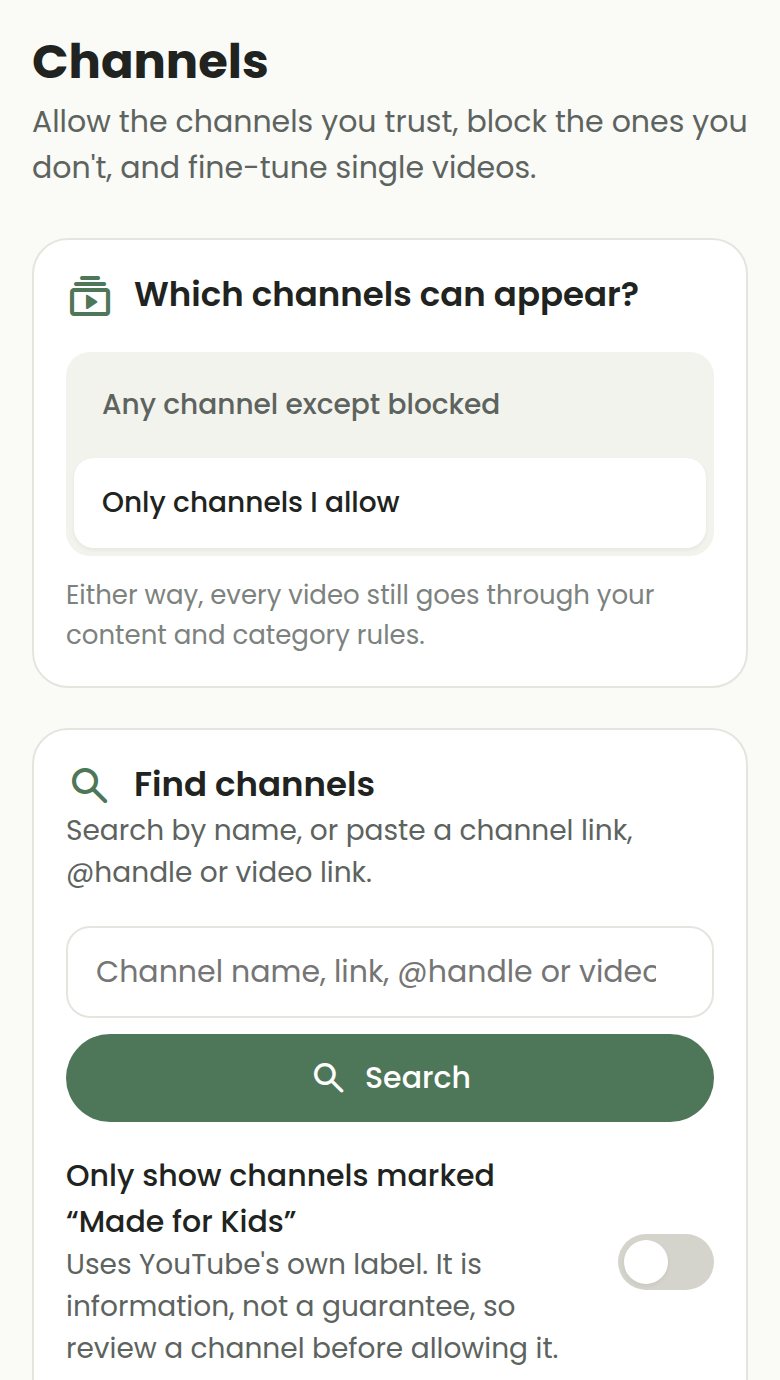
Open Parent Mode → Channels
Open COONI, tap Parent and enter your 4-digit Parent PIN, then go to Channels.
Search for CoComelon
Type CoComelon in the search box, or paste the channel link, its @handle or the link of one of its videos. Check the @handle and subscriber count so you pick the official channel, and tap Preview to look inside first.
Tap Block
The channel moves to "Blocked channels" and its videos disappear from Child Mode straight away. If you find more than one CoComelon channel (some are in other languages), block each one you want to keep out.
Or hide only some episodes
To keep CoComelon but skip a few videos, tap Allow instead, open "Manage videos" on the channel and tap Hide on each video you want to skip.
Questions
Can I block CoComelon in the YouTube Kids app too?
Yes. Google’s help page explains it: sign in to the YouTube Kids app, open one of its videos, tap More at the top of the video, tap Block and choose "Block entire channel". COONI does the same from Parent Mode → Channels, on any phone, tablet or computer with a browser.
What if I use "Only channels I allow"?
Then CoComelon stays out unless you allow it. Your child sees only the channels you picked, so there is nothing to block.
Is COONI connected to CoComelon?
No. COONI is an independent app for parents and is not affiliated with CoComelon, Moonbug Entertainment, YouTube or Google.
Try COONI free · How to use COONI
More guides
- How to block a YouTube channel for kids: Block a YouTube channel so your child never sees its videos, or allow only the channels you trust. Step-by-step with COONI, free.
- How to block certain YouTube videos without blocking the channel: A good kids’ channel can still have one video you would rather skip. Hide just that video and keep the rest of the channel. Free with COONI.
- How to block brainrot on YouTube for kids: Hide fast, nonsense "brainrot" meme videos, scary Halloween clips and pranks on YouTube for your child. Step-by-step with COONI.
- How to hide YouTube Shorts for kids: Stop your child watching endless YouTube Shorts. COONI hides short clips by default, keeps Shorts apart and never plays them automatically.
- A YouTube Kids alternative where parents choose the channels: Looking for a safer YouTube Kids alternative? COONI lets parents pick the channels, hide single videos, block brainrot and set screen time. Free.
- How to set YouTube screen time for kids: Set a daily YouTube time limit for your child, show a countdown timer and end with a friendly "Time for a break!" screen. Step-by-step with COONI.
- How to make YouTube safe for kids: Make YouTube safer for your child: allow only channels you trust, block scary videos and brainrot, hide Shorts and set a daily limit. Free with COONI.
- How to block all YouTube channels except the ones you choose: Let your child watch only the YouTube channels you pick and block every other channel. "Only channels I allow" in COONI, free, step by step.
- How to stop your child watching inappropriate videos on YouTube: Your child found a video you do not like? Block the channel, hide the single video or block the whole topic, step by step with COONI.
- How to see what your child watches on YouTube: See the videos your child watched recently and how long they watched today, then block anything you do not like. Step by step with COONI.
- How to stop your child leaving a kids’ YouTube app: The YouTube logo on an embedded video opens YouTube. Lock your iPhone, iPad or Android device to COONI with Guided Access or App pinning so your child cannot switch apps, and know what the lock cannot stop. Step by step.
- How to let your child watch your own family videos: Put birthdays, trips and first steps on your own YouTube channel, then allow it in COONI so your child can watch their own memories again. Step by step.
COONI is not affiliated with or endorsed by YouTube or Google.