
A YouTube Kids alternative where parents choose the channels
Most kids’ video apps are driven by recommendations: the app decides what plays next. COONI works the other way round. You choose the channels, and your child only sees videos that fit the rules you set.
COONI is an independent app, not made by YouTube or Google. Videos come from YouTube and play in the official YouTube player, but what appears is decided by you.
Step by step
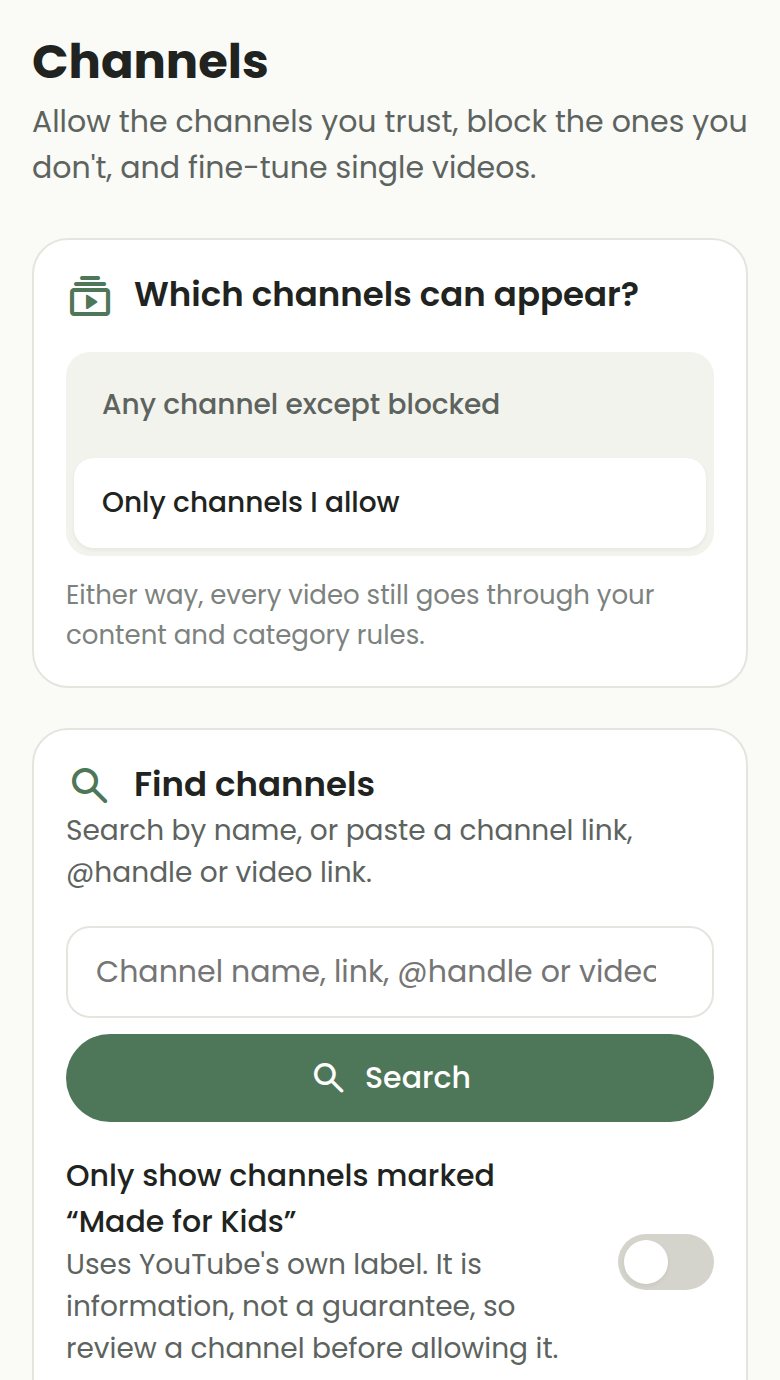
Pick the channels
Allow the channels you trust from suggested kids’ channels or by searching. With "Only channels I allow", nothing else appears.
Hide single videos
Keep a good channel but hide the one video you would rather skip, with "Manage videos".
Block topics everywhere
Scary, Halloween, pranks, dangerous challenges and "brainrot" are blocked by default across every channel.
Set screen time
Choose a daily limit and show your child a small timer. When time is up COONI shows a friendly "Time for a break!" screen.
Lock it with a PIN
Every rule change needs your 4-digit Parent PIN, so little hands cannot undo your settings.
Questions
Does my child need an account?
No. Only the parent creates an account, with a Gmail address. COONI never asks for a child’s name, age, photo or contact details.
What devices does it work on?
iPhone, iPad, Android phones and tablets, and computers. Open cooni.online in the browser and add it to the home screen to use it like an app.
How much does it cost?
COONI is free, and watching videos is always free. COONI Plus adds extra parent tools, such as your own blocked words and allowed viewing hours.
Try COONI free · How to use COONI
More guides
- How to block a YouTube channel for kids: Block a YouTube channel so your child never sees its videos, or allow only the channels you trust. Step-by-step with COONI, free.
- How to block certain YouTube videos without blocking the channel: A good kids’ channel can still have one video you would rather skip. Hide just that video and keep the rest of the channel. Free with COONI.
- How to block brainrot on YouTube for kids: Hide fast, nonsense "brainrot" meme videos, scary Halloween clips and pranks on YouTube for your child. Step-by-step with COONI.
- How to hide YouTube Shorts for kids: Keep endless YouTube Shorts away from your child. COONI hides short clips by default, keeps Shorts apart and never plays them automatically.
- How to set YouTube screen time for kids: Set a daily YouTube time limit for your child, show a countdown timer and end with a friendly "Time for a break!" screen. Step-by-step with COONI.
COONI is not affiliated with or endorsed by YouTube or Google.