
How to hide YouTube Shorts for kids
Shorts are made to be swiped one after another, which makes them hard for children to stop. Many parents want them gone, or at least out of the way.
In COONI, Shorts are always kept apart from regular videos and never play automatically. On top of that, the "Short clips (under 1 minute)" rule is on for every new account, so most Shorts are hidden before your child sees them.
Step by step
Open Parent Mode → Content
Open COONI, tap Parent, enter your PIN and go to Content.
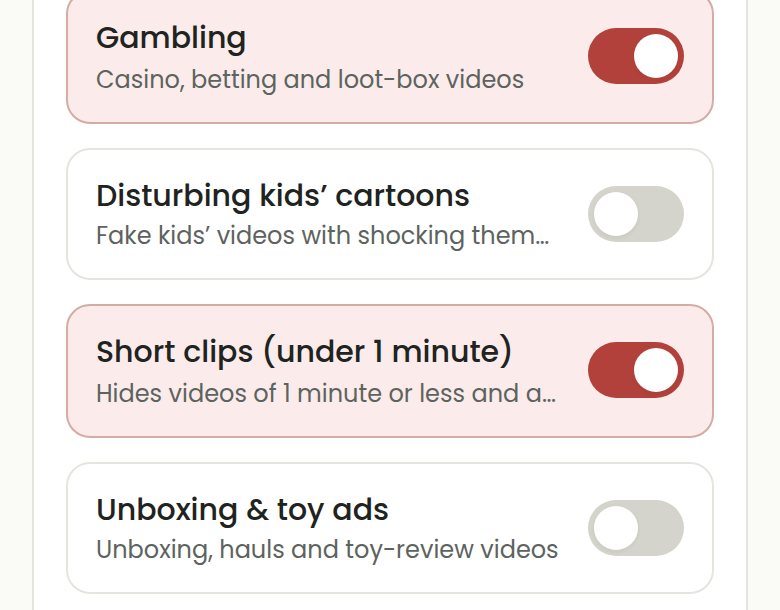
Keep "Short clips (under 1 minute)" on
Under "Blocked content", this switch hides videos of 1 minute or less and anything tagged #shorts, which covers most Shorts.
Turn it off only if you want Shorts
If you are happy for your child to watch some Shorts, turn the switch off. They still only come from channels and topics your rules allow, stay in their own row and never start by themselves.
Questions
Why does my child still see a few Shorts?
A Short can be longer than a minute or not be tagged #shorts, so a few may pass. They are still kept apart from regular videos and never play automatically.
Is the Shorts rule free?
Yes. The Shorts rule, the daily time limit, the timer and autoplay are all part of the free plan.
Try COONI free · How to use COONI
More guides
- How to block a YouTube channel for kids: Block a YouTube channel so your child never sees its videos, or allow only the channels you trust. Step-by-step with COONI, free.
- How to block certain YouTube videos without blocking the channel: A good kids’ channel can still have one video you would rather skip. Hide just that video and keep the rest of the channel. Free with COONI.
- How to block brainrot on YouTube for kids: Hide fast, nonsense "brainrot" meme videos, scary Halloween clips and pranks on YouTube for your child. Step-by-step with COONI.
- A YouTube Kids alternative where parents choose the channels: Looking for a safer YouTube Kids alternative? COONI lets parents pick the channels, hide single videos, block brainrot and set screen time. Free.
- How to set YouTube screen time for kids: Set a daily YouTube time limit for your child, show a countdown timer and end with a friendly "Time for a break!" screen. Step-by-step with COONI.
COONI is not affiliated with or endorsed by YouTube or Google.