
How to see what your child watches on YouTube
Knowing what your child watches is the first step to deciding what stays. In COONI every video your child plays is counted against your parent account, so you can look back without asking your child for the device history.
You see the recent videos in the Library and the viewing time in Parent Mode, and you can block or hide anything you do not like straight away.
Step by step
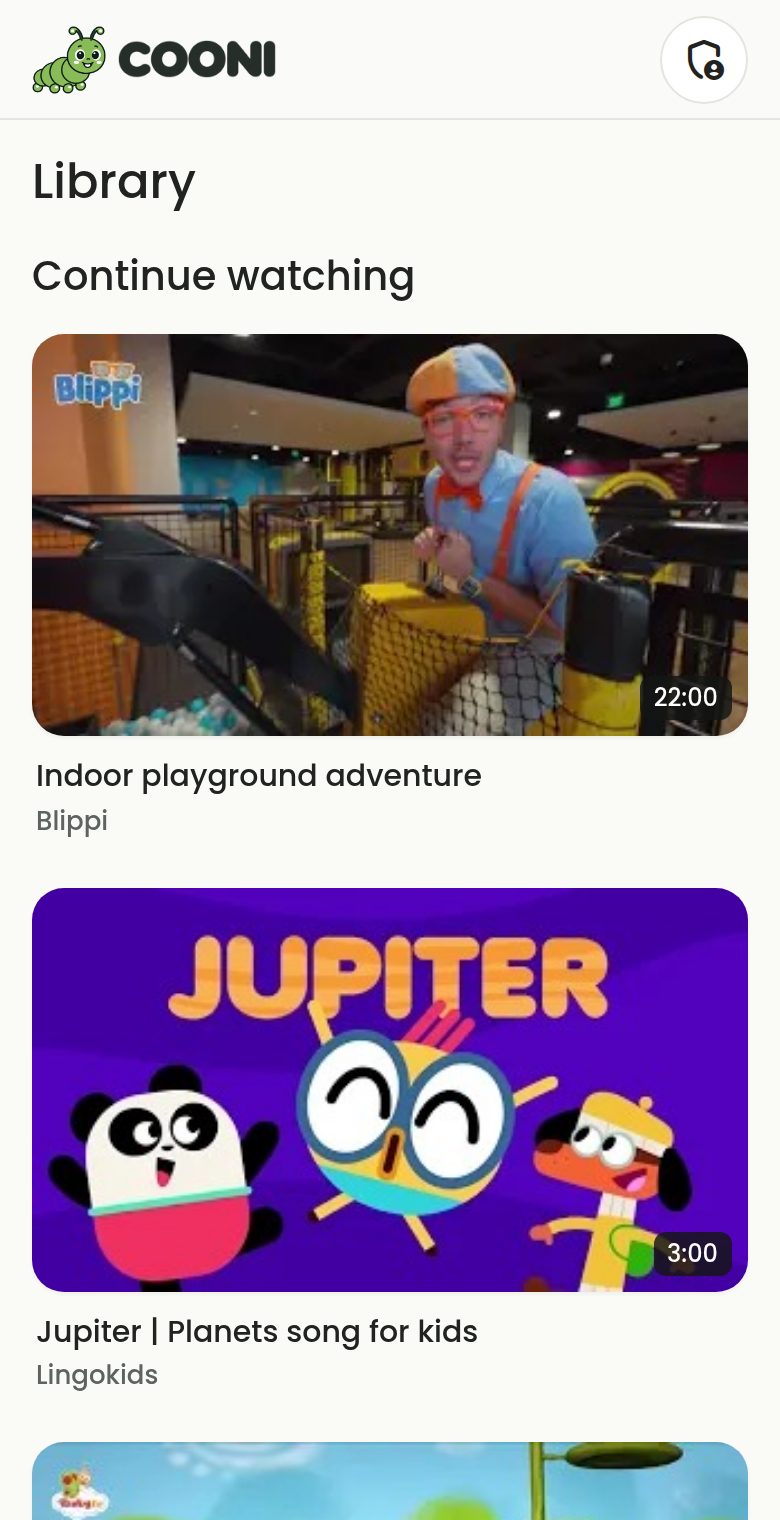
Open the Library in Child Mode
Tap Library. "Continue watching" lists the videos watched recently on your account, newest first, as long as they still pass your rules.
Check the viewing time
Tap Parent, enter your PIN and look at "Watched today" on the Parent Mode home screen. With COONI Plus you also see the last 7 days.
Block what you do not like
Found something you would rather skip? Block the channel in Parent Mode → Channels, or hide the single video with "Manage videos". It leaves the Library and Child Mode straight away.
Questions
Does it show videos watched in the YouTube app?
No. COONI only knows what is watched inside COONI. Videos watched in the YouTube app or on youtube.com are not included.
Can I clear the history?
Yes. Parent Mode → Settings → Clear watch history removes it at any time.
Does it work across devices?
Yes. Every device signed in to the same COONI account adds to the same Library and viewing time.
Try COONI free · How to use COONI
More guides
- How to block a YouTube channel for kids: Block a YouTube channel so your child never sees its videos, or allow only the channels you trust. Step-by-step with COONI, free.
- How to block certain YouTube videos without blocking the channel: A good kids’ channel can still have one video you would rather skip. Hide just that video and keep the rest of the channel. Free with COONI.
- How to block brainrot on YouTube for kids: Hide fast, nonsense "brainrot" meme videos, scary Halloween clips and pranks on YouTube for your child. Step-by-step with COONI.
- How to hide YouTube Shorts for kids: Stop your child watching endless YouTube Shorts. COONI hides short clips by default, keeps Shorts apart and never plays them automatically.
- A YouTube Kids alternative where parents choose the channels: Looking for a safer YouTube Kids alternative? COONI lets parents pick the channels, hide single videos, block brainrot and set screen time. Free.
- How to set YouTube screen time for kids: Set a daily YouTube time limit for your child, show a countdown timer and end with a friendly "Time for a break!" screen. Step-by-step with COONI.
- How to make YouTube safe for kids: Make YouTube safer for your child: allow only channels you trust, block scary videos and brainrot, hide Shorts and set a daily limit. Free with COONI.
- How to block all YouTube channels except the ones you choose: Let your child watch only the YouTube channels you pick and block every other channel. "Only channels I allow" in COONI, free, step by step.
- How to stop your child watching inappropriate videos on YouTube: Your child found a video you do not like? Block the channel, hide the single video or block the whole topic, step by step with COONI.
COONI is not affiliated with or endorsed by YouTube or Google.